PromptDeck
Reusable AI prompts, one keystroke away in the Vicinae launcher.
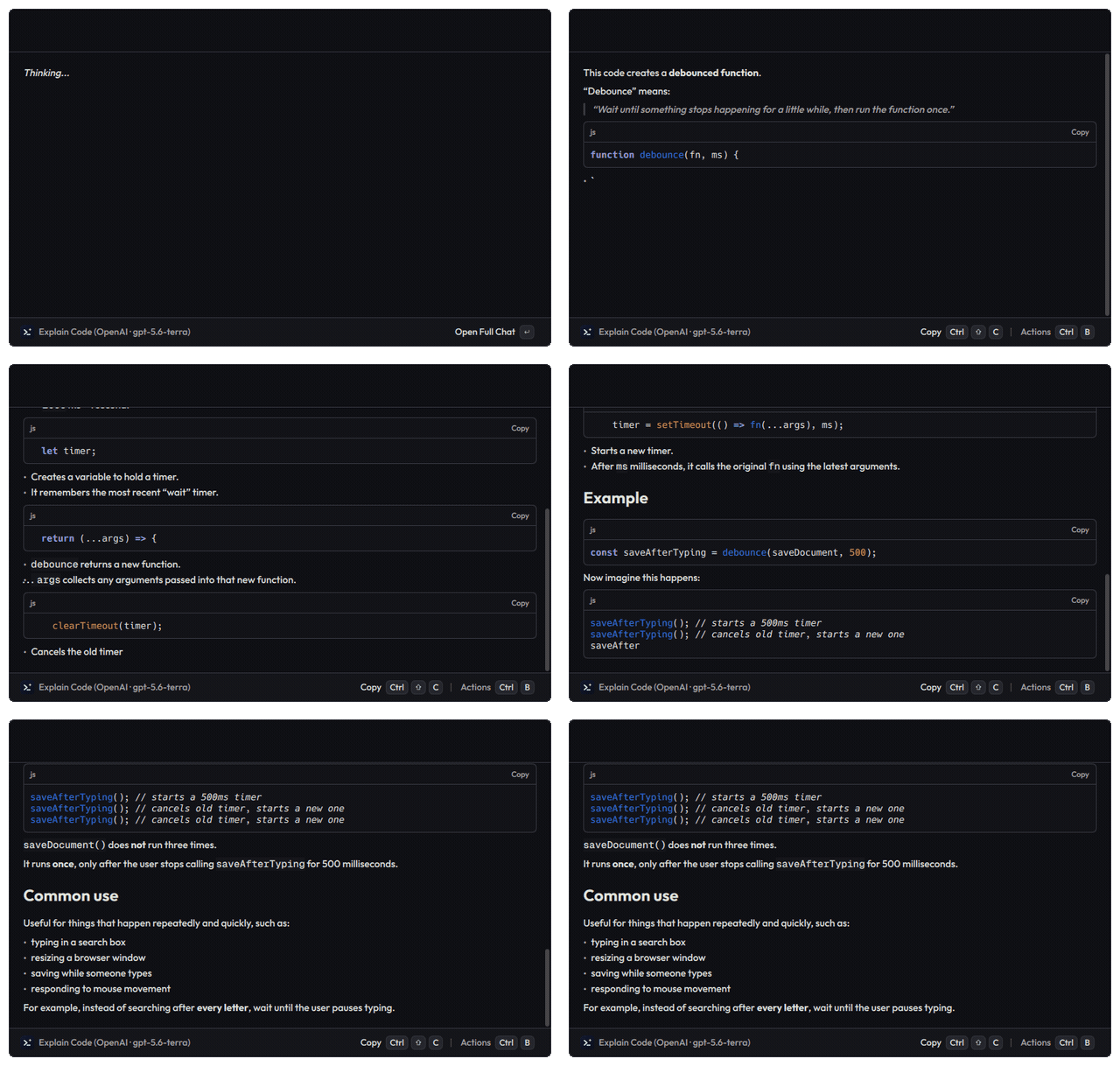
Define a prompt once — system prompt, optional default command, and which context it should pick up — then run it against your selected text or clipboard from anywhere. Answers stream back as rendered markdown, so headings, lists and syntax-highlighted code all arrive formatted. Register a prompt as a Quicklink and it becomes its own entry in Vicinae's root search.
Features
- Reusable prompts — name, system prompt, optional default command, and context sources (selected text, clipboard text). Prompts with a default command run instantly; leave it empty to be asked each time.
- Root-search Quicklinks — turn any prompt into a Vicinae Quicklink so it launches under its own name. A guided step after creating a prompt walks you through it.
- Pick your context per run — the command form previews each captured block with its character count, and lets you untick anything you don't want sent.
- Streaming replies — answers render live, and Reply continues the conversation with the same context pinned.
- Paste straight back — a prompt can send its answer to the app you were working in, so selecting text and firing a prompt rewrites it in place.
- Three providers, separate keys — OpenAI, Anthropic, and Google. Each prompt can override the provider, model, temperature, reasoning level, and max output tokens.
- OpenAI-compatible endpoints — point the base URL at Ollama, OpenRouter, or any compatible server; local ones work without an API key.
- Local history — browse, re-run, and copy past runs, or turn history off entirely.
Setup
- Open the extension preferences.
- Pick a Default Provider and paste its API key — you only need keys for the providers you actually use:
- Set a Default Model for that provider, e.g.
gpt-4o-mini,claude-sonnet-4-5, orgemini-2.5-flash.
For a local or alternative OpenAI-compatible server, choose OpenAI or Compatible as the provider and set the OpenAI-Compatible Base URL — for example http://localhost:11434/v1 for Ollama, with the model set to whatever you have pulled. Local servers that take no auth need no API key; hosted ones such as OpenRouter still need theirs.
Usage
Create a prompt. Open Manage Prompts → Create Prompt. Give it a name and a system prompt, choose whether it should read your selected text and/or clipboard, and optionally set a default command. Typing a name that matches nothing in the search bar also offers to create it.
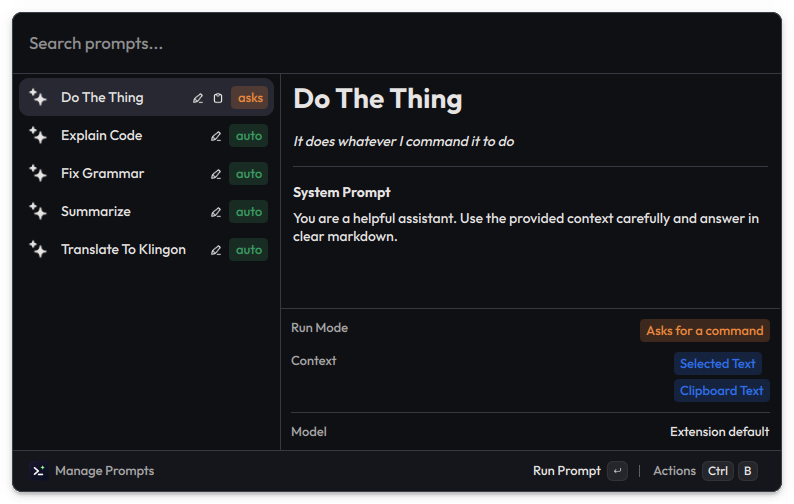
Each prompt shows how it runs at a glance — a green auto tag for prompts with a default command, orange asks for those that prompt you — alongside icons for the context it captures.
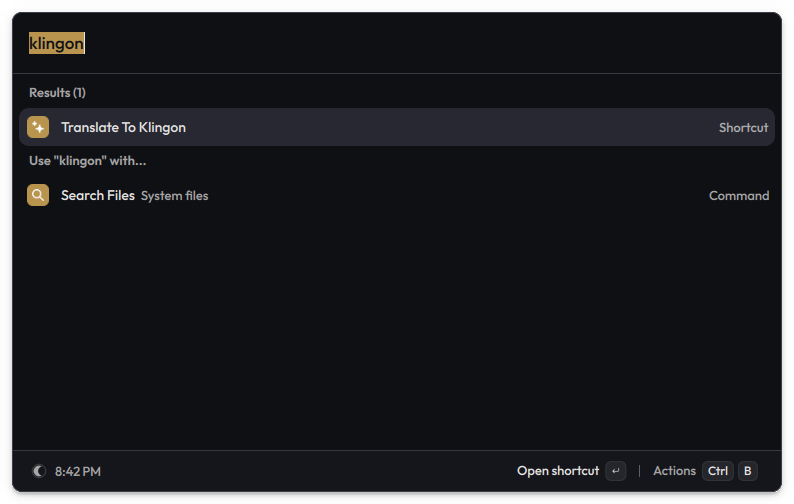
Add it to root search. After saving, the guided step opens Vicinae's Quicklink form prefilled — keep the link and Open With as they are, adjust the name or icon if you like, and save. You can also do this later via Create Quicklink on any prompt. The prompt then answers to its own name in root search:
Run it. Launch the Quicklink, or run it straight from Manage Prompts. Prompts without a default command ask what to do and show what context was captured. When the answer arrives, Copy grabs it (optionally closing the launcher) and Reply keeps the conversation going.
Review. Prompt History lists past runs grouped by prompt, with copy, re-run, and delete.
Preferences
| Preference | Description |
|---|---|
| Default Provider | Provider used unless a prompt overrides it. |
| OpenAI / Anthropic / Google API Key | Stored as Vicinae password preferences. The OpenAI one can be left blank for local endpoints that need no auth. |
| Default Model | Model id for the default provider. |
| OpenAI-Compatible Base URL | Optional endpoint override (OpenAI provider only). |
| Temperature | Optional default; values outside the active provider's range are ignored. |
| Reasoning Level | Optional default reasoning effort, passed to the provider as-is. Commonly minimal to max; support varies by provider and model. |
| Max Output Tokens | Optional default output cap. |
| Save prompt run history | Turn local run history on or off. |
Every prompt can override the provider, model, temperature, reasoning level, and max output tokens individually.
Privacy
- Running a prompt sends the prompt text — plus your selected text and/or clipboard text when the prompt includes them — to the LLM provider you configured. The extension makes no other network requests.
- API keys are stored as Vicinae password preferences and are only ever sent to the provider they belong to.
- Run history stays on your machine. Clear it any time from Prompt History, or disable it with the Save prompt run history preference.
Development
npm ci
npx vici develop